Updating a Podman Desktop extension
Podman Desktop checks the extension catalog for newer versions of your extensions, and installs them automatically by default. You can turn off automatic updates for all extensions or for one extension, and update an extension manually when you are ready.
How updates work
- Podman Desktop checks for updates at startup, and then every 12 hours.
- An extension is checked when its ID matches an extension in the extension catalog, even if you installed it from another image. Docker Desktop extensions and extensions loaded from a local folder are not updated.
- Podman Desktop compares the installed version with the latest version of the extension in the catalog that is compatible with your Podman Desktop version. Preview versions are never installed by an update.
- Updating an extension removes the installed version and installs the new one from its image.
- Extensions bundled with Podman Desktop are also updated from the catalog. The new version replaces the bundled one. To go back to the bundled version, uninstall the extension, then disable its automatic updates. Otherwise, the next check updates it again.
Configuring automatic updates
Two settings control updates for all extensions. Both are enabled by default.
-
Go to Settings > Preferences.
-
Select Extensions.
-
Configure the settings:
- Auto Update: check for extension updates, and download and install them automatically.
- Auto Check Updates: when Auto Update is disabled, still check for extension updates, and show an Update available link when a newer version exists, so you can update manually.
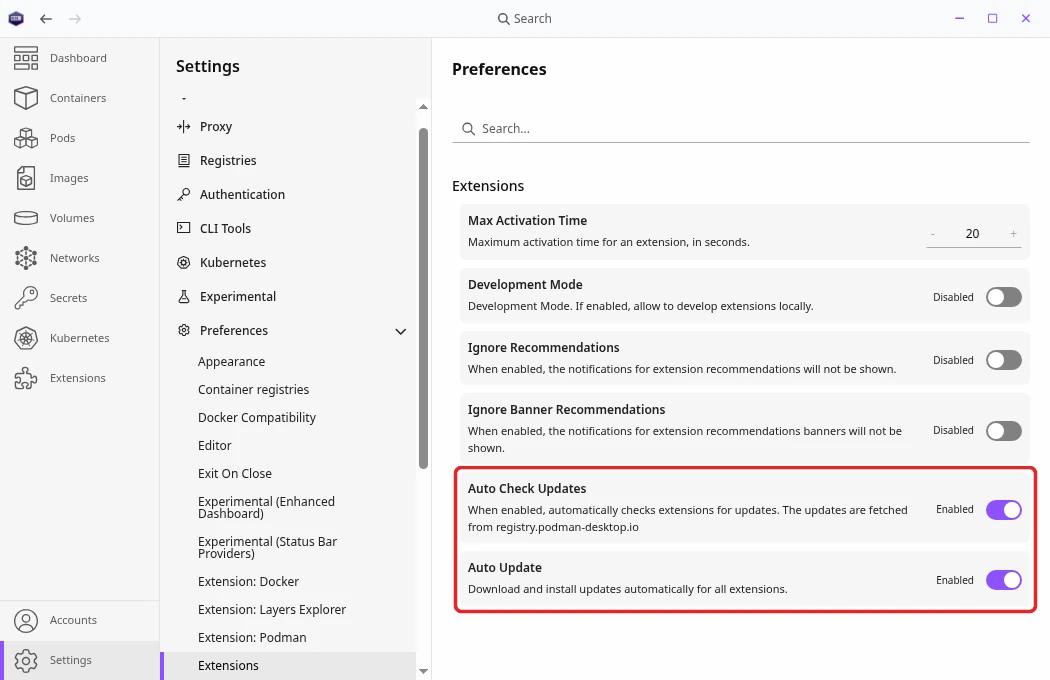
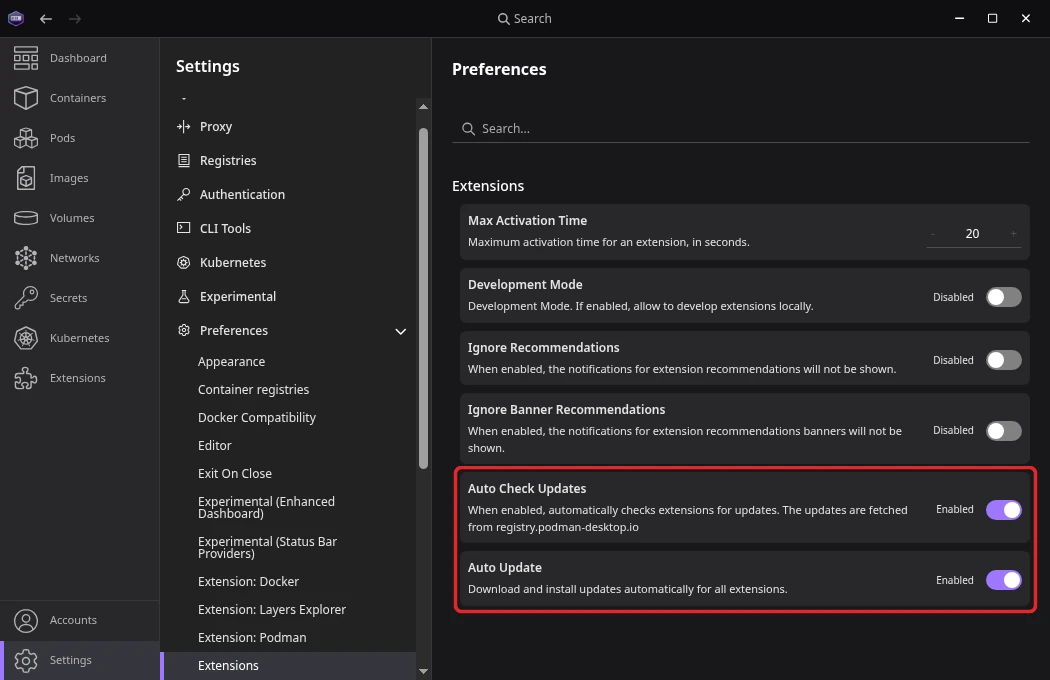
When both settings are disabled, Podman Desktop does not check for updates. Enabling one of them runs a check right away.
The settings are stored as extensions.autoCheckUpdates and extensions.autoUpdate in the settings file. Your administrator can lock them with a managed configuration.
Turning off automatic updates for one extension
You can keep automatic updates for all extensions, and pin one extension to its installed version.
-
Click the Extensions button.
-
In the Installed tab, click the name of the extension to open its details.
-
Next to Auto-update, click Disable.
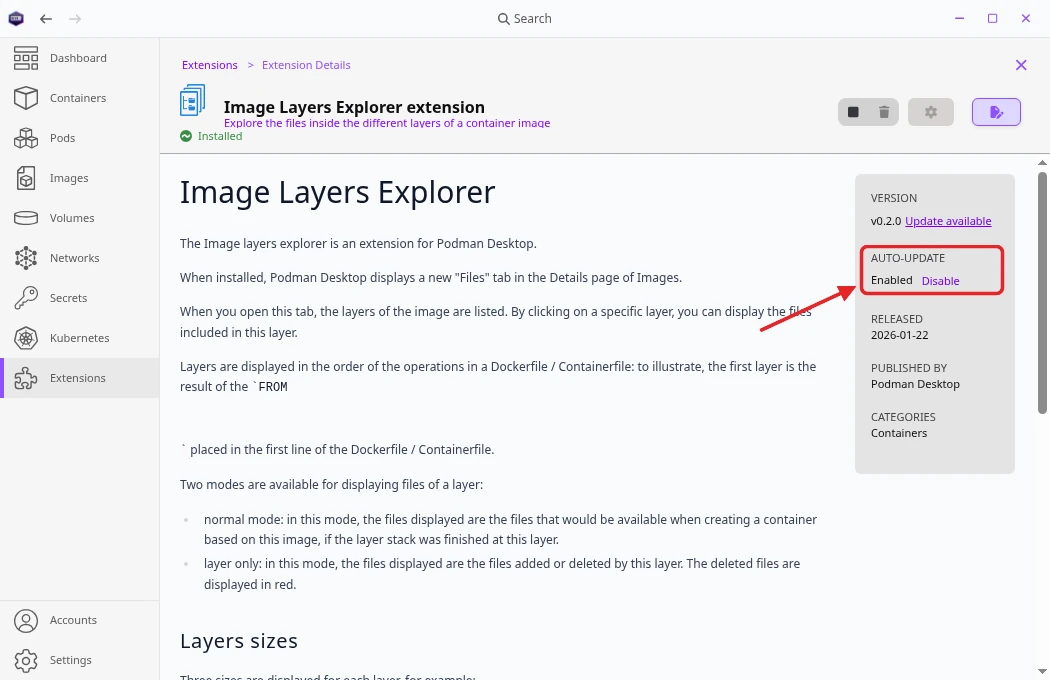
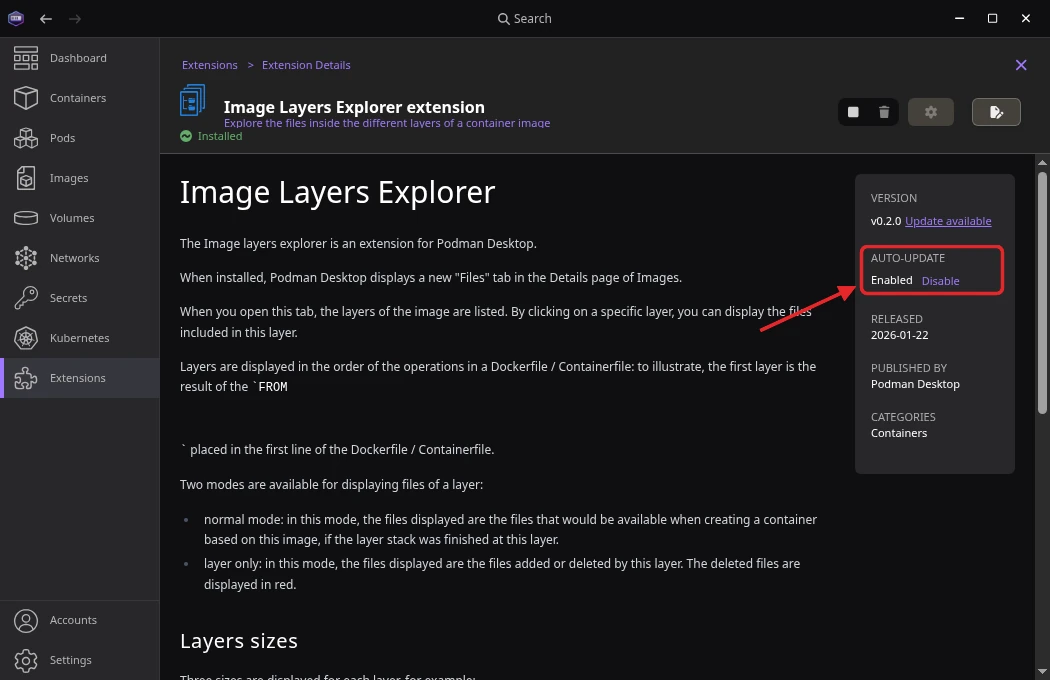
Podman Desktop still checks this extension for updates, and shows the Update available link when a newer version exists. Click Enable to turn automatic updates back on. Uninstalling the extension also turns them back on.
Updating an extension manually
When automatic updates are disabled for this extension, or when Auto Update is disabled and Auto Check Updates is enabled, update the extension yourself:
-
Click the Extensions button.
-
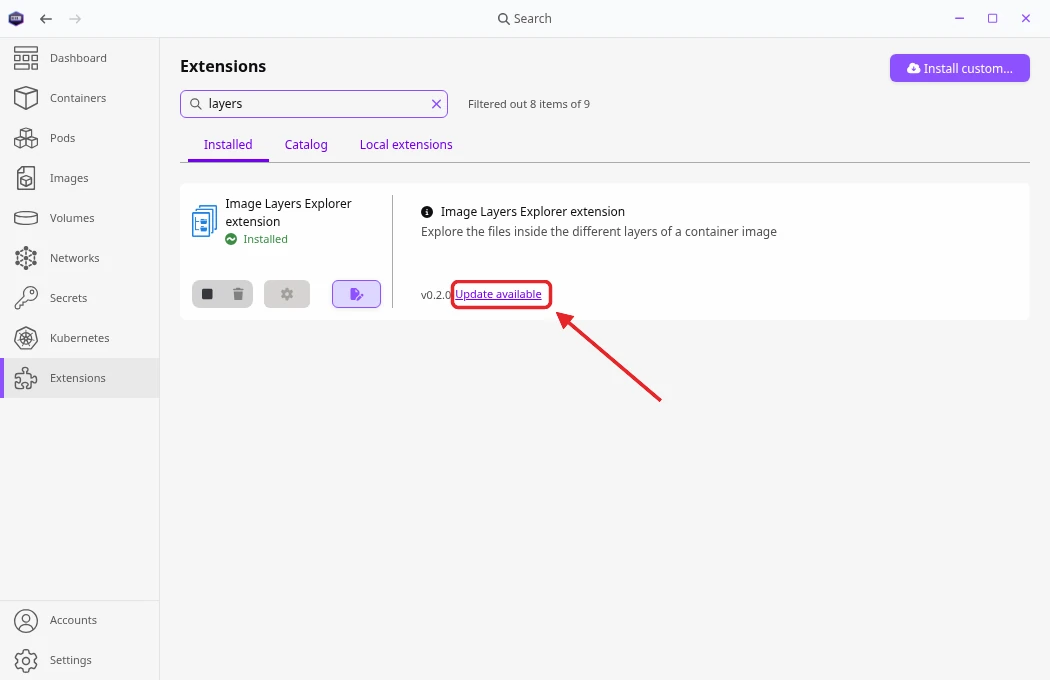
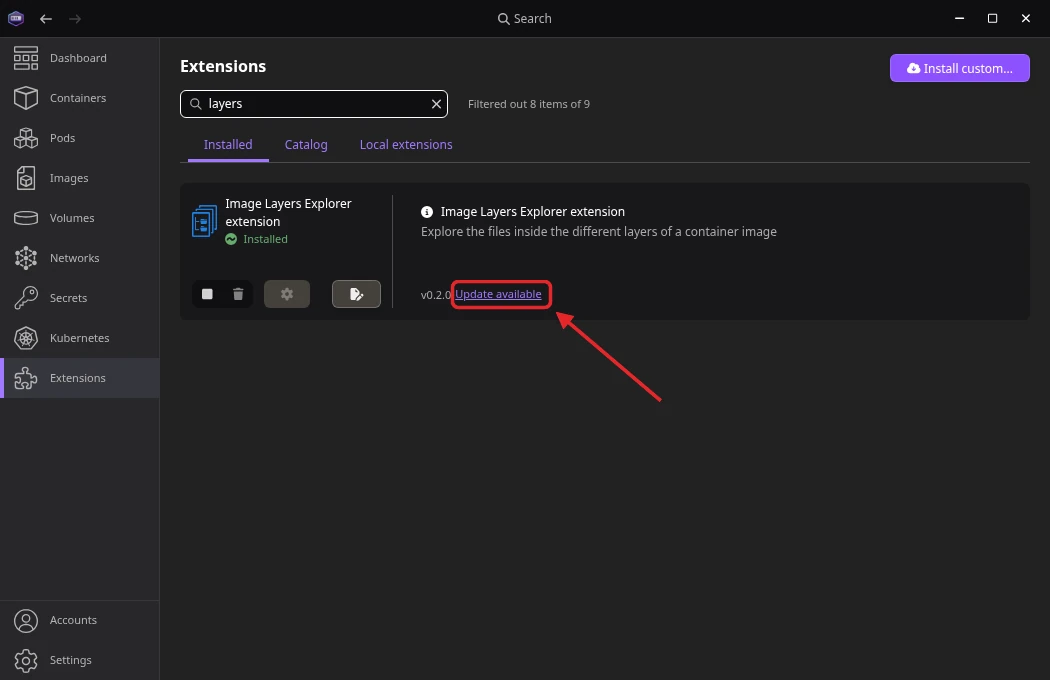
In the Installed tab, click Update available next to the extension version. Hover the link to see the version that will be installed. The link is also next to the version on the details page of the extension.
Following an update
Each update, automatic or manual, runs as a task named Updating extension to vversion. A notification and the status bar show its progress. While it runs, the extension is not listed in the Installed tab.
To see the update tasks, click the Tasks bell icon in the status bar.


Verification
- In the Installed tab of the Extensions page, the extension shows the new version, and the Update available link is gone.
- If the update fails, the task shows the error.